Newspaper Admin Panel Technical Guide
This guide explains how the tenant panel (newspaper end) is handled. As a newspaper admin you can manage the full system — settings, news, media, monetization, storage and your team — from your own admin panel after purchasing a SaaS plan.
Tip: make the routes clickable
Every panel route below is shown for the placeholder host your_url. Enter your own panel domain in the top bar and press Set — all routes instantly become clickable links to your own admin panel and open in a new tab. Leave it empty to keep them as plain reference paths.
Introduction
How the tenant panel / newspaper end is handled.
In this platform we will explain how the tenant panel or newspaper end is handled. The newspaper admin can manage the full system from a dedicated admin panel.
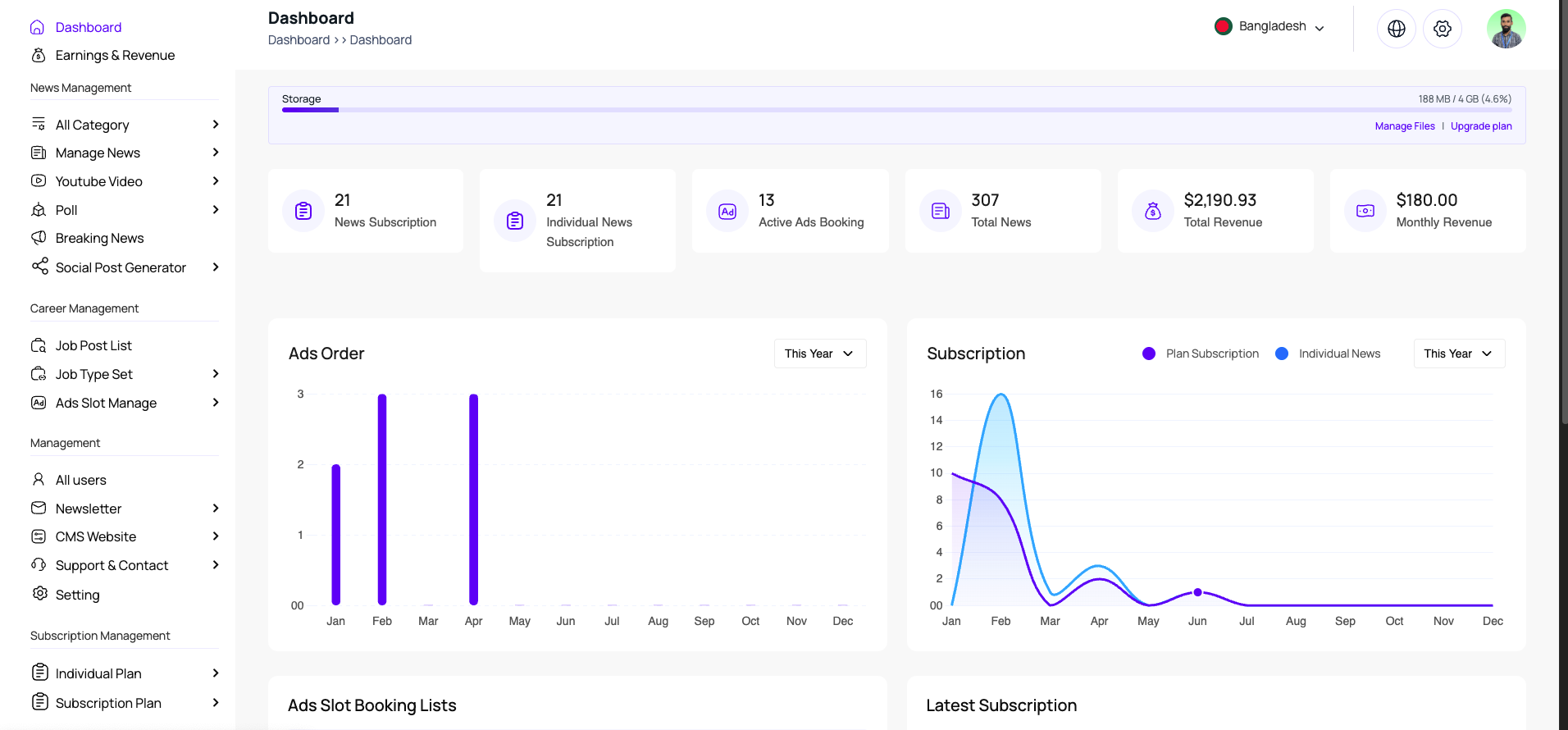
Setting Page
The main setting page where the admin can see the available configuration.
This is the main setting page where the admin can see the available configuration.
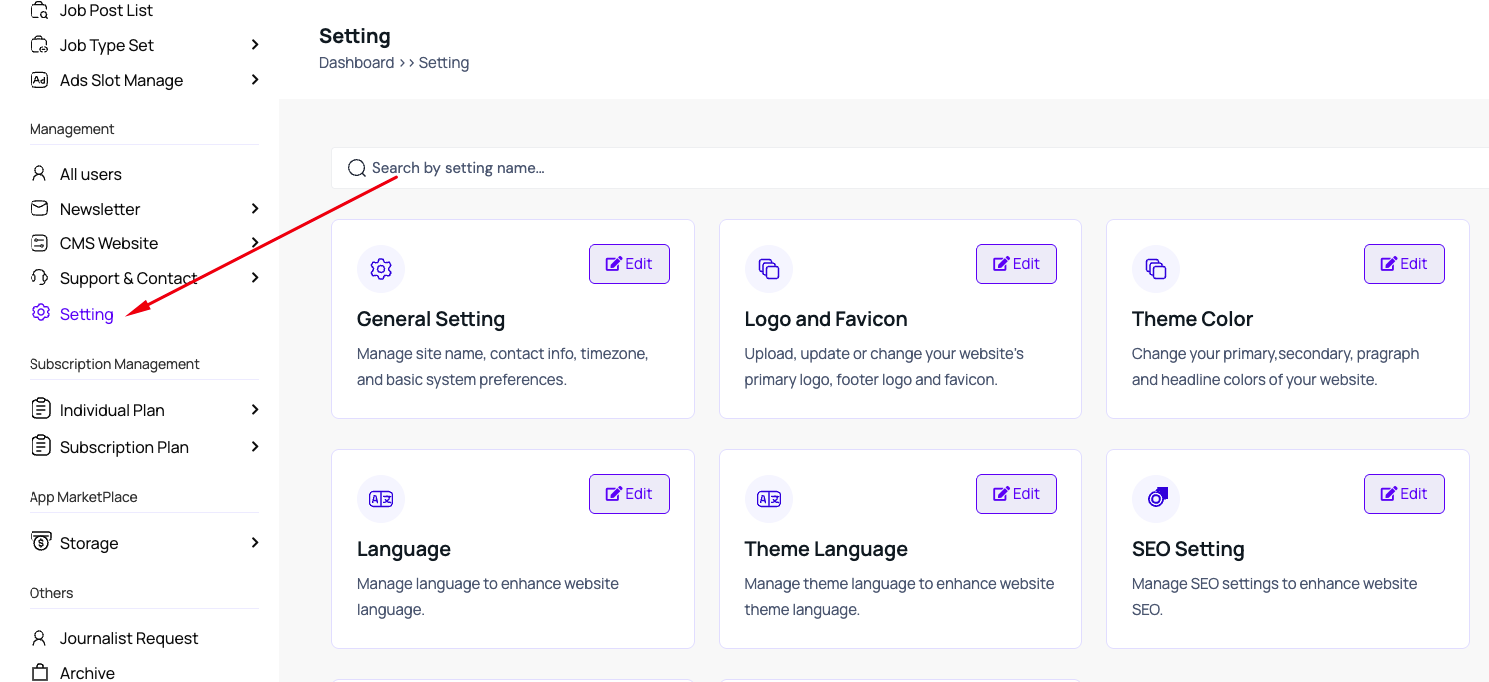
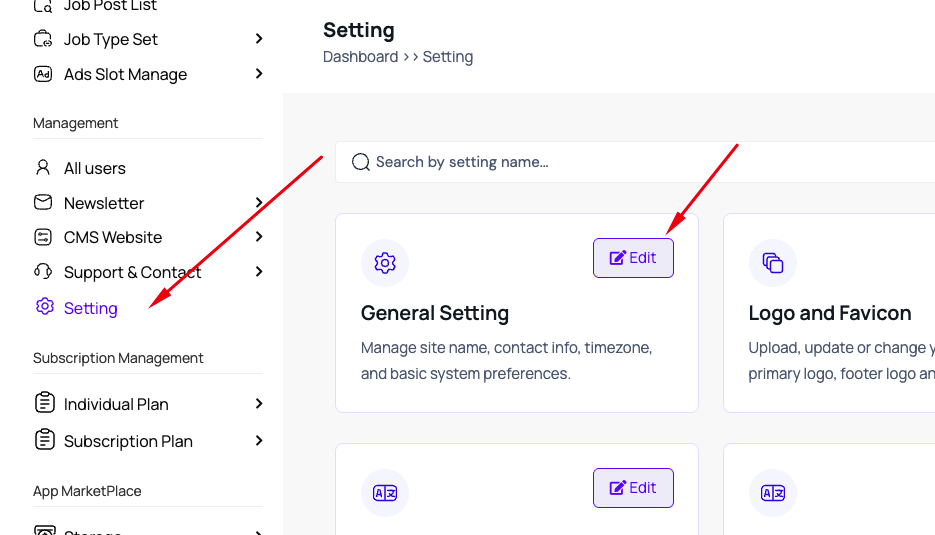
General Setting
How to change newspaper or app name
You can change the newspaper or app name from the general setting.
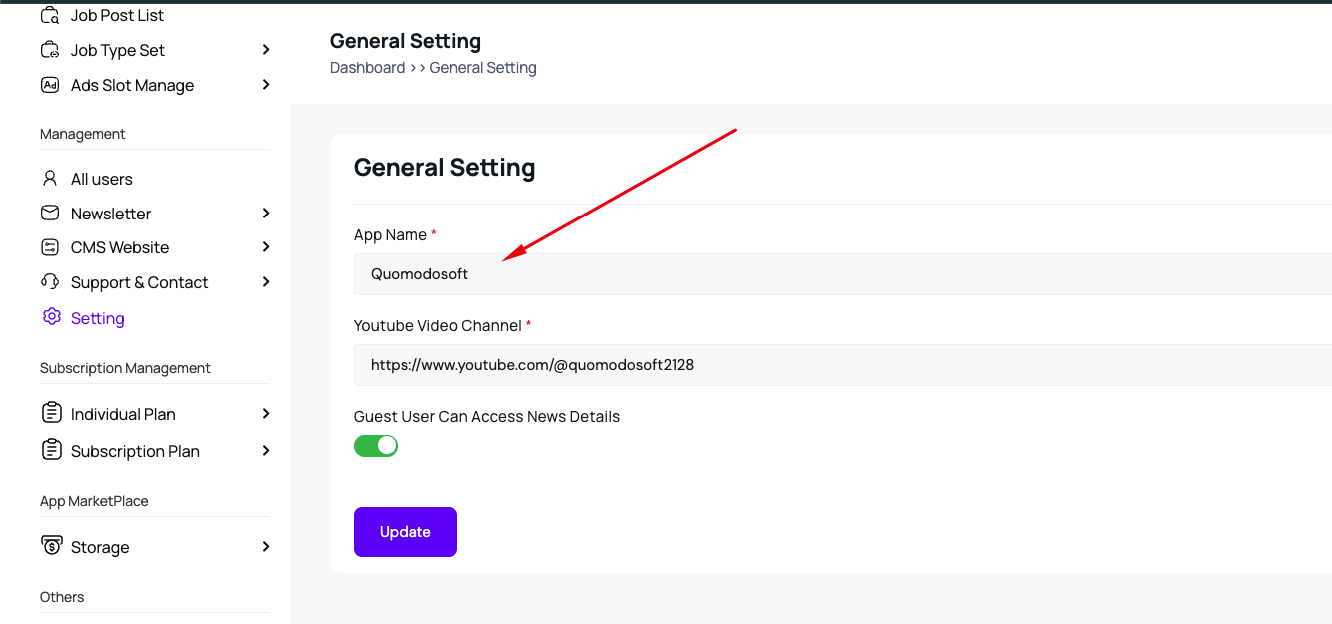
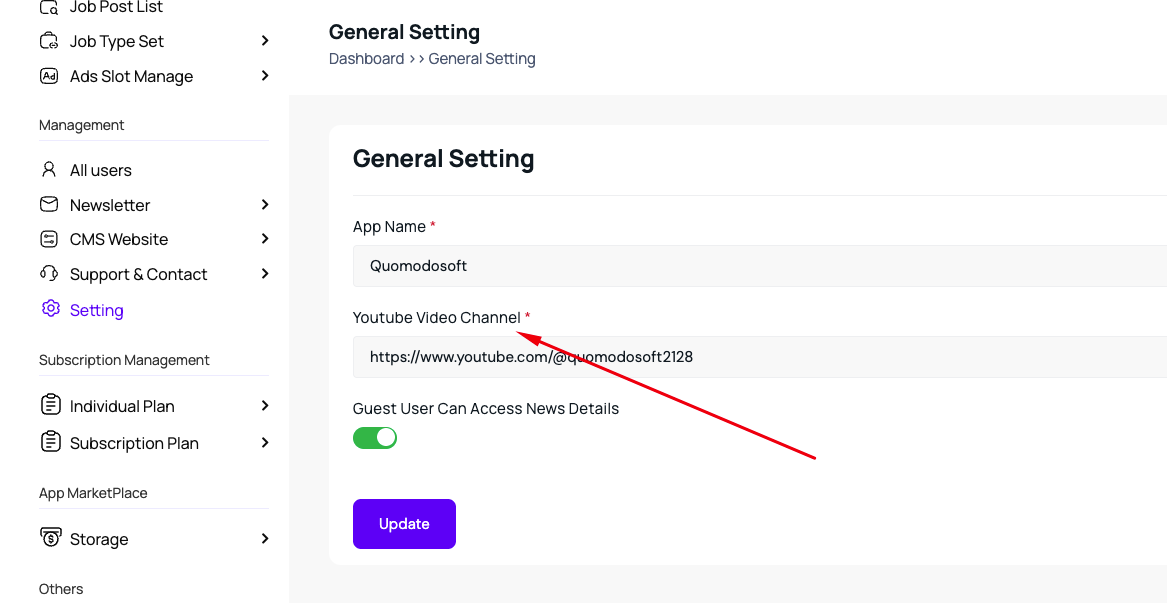
How to add my YouTube channel name in this system
In this general setting you can find the option to add your YouTube channel name.
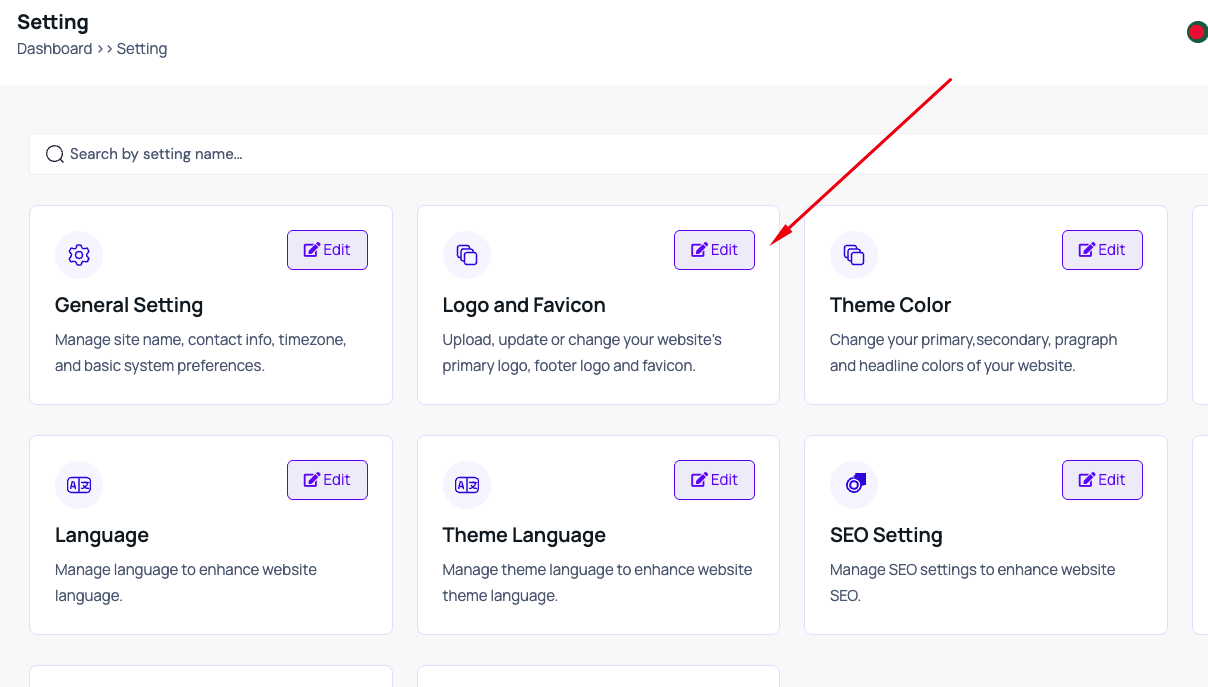
Logo and Favicon
How to change logo and favicon? In this logo setting you can do it.
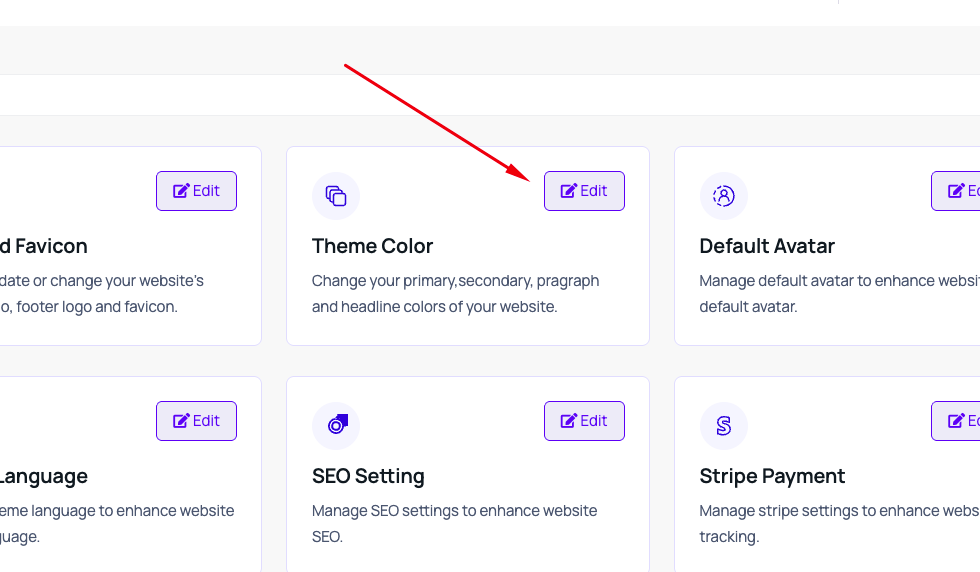
Website Theme Color
How to change the website theme color? You can change the website theme color from this link.
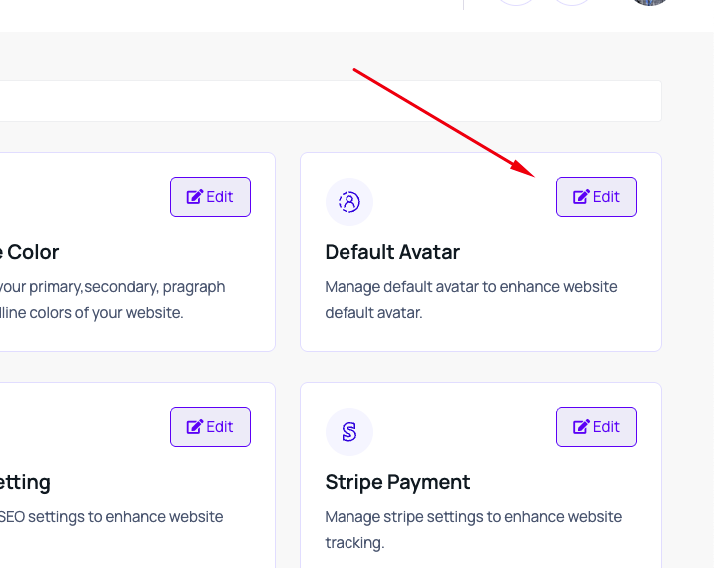
Default Avatar
How to setup the default avatar? From here.
Multi Language
How to setup the multi language or language in this system? Multi language is a major part of our system. The admin can add unlimited languages for his site. From the link below he can create or manage the languages.
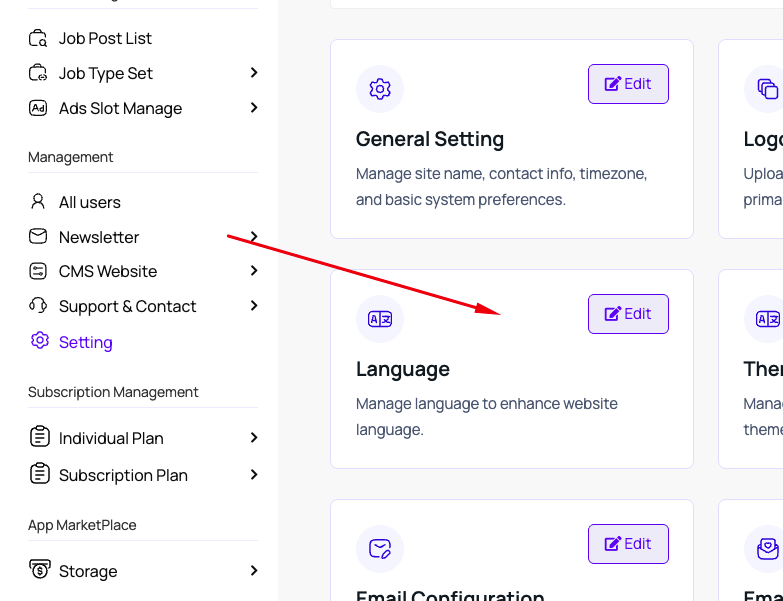
How to set up the default language
When you add multiple languages you have to set a default language. On the language edit page you will find an "is default" toggle box — toggle it and update. The system will detect it as the default language.
Localization
How to manage localization? When you create a new language you have to change or set up the localization text depending on the language. You can change or update it from this section.
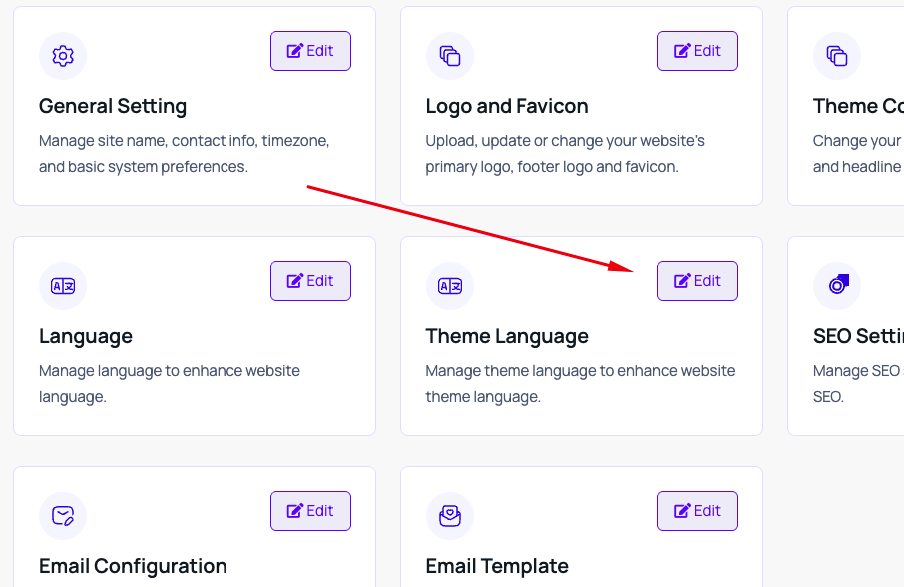
SEO Setting
SEO setting can be managed from here. On this link you can see all available pages; you set or update the SEO info for all the pages here.
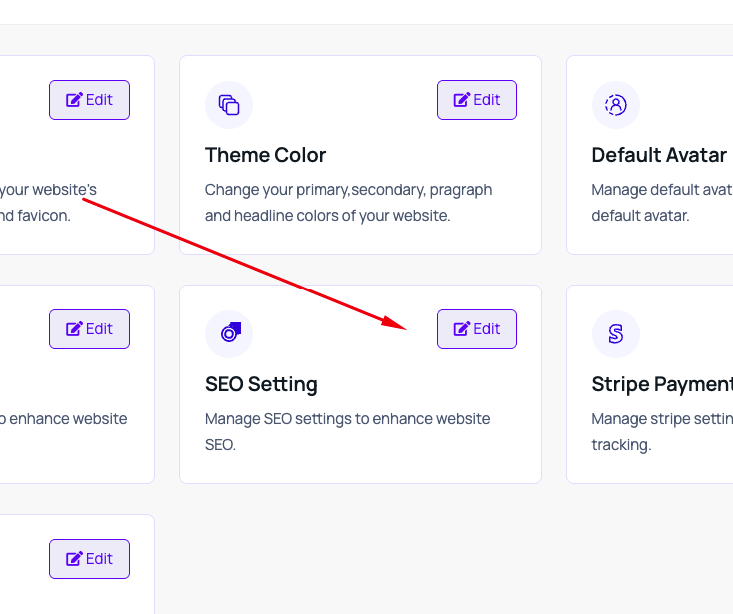
Payment Gateway
Available payment gateway options can be seen here.
How can I handle Stripe payment or update the information?
From this link you can see the Stripe key and secret key here. Generate the key on your Stripe and update it here.
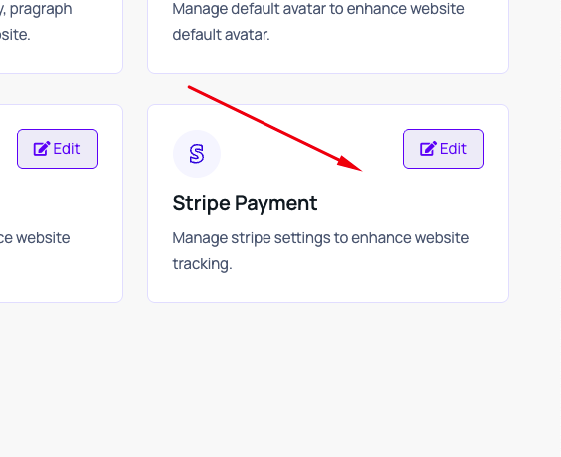
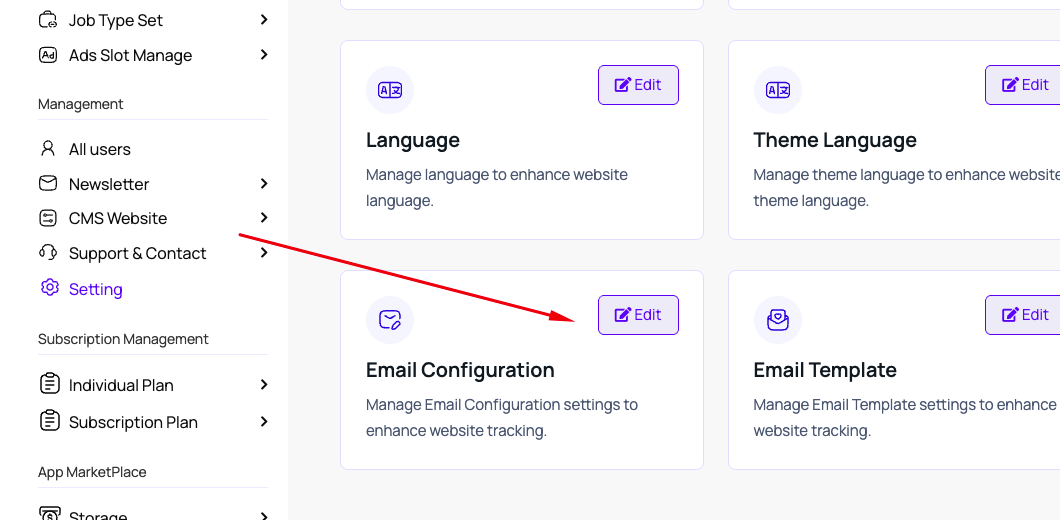
SMTP or Email Configuration
What is SMTP? Each mail to send needs SMTP configuration. If you want to send mail to a user or a newsletter you have to set it up first — for example user verify OTP, forgot password OTP, invoice mail, etc. So update the SMTP information here.
Mail Template
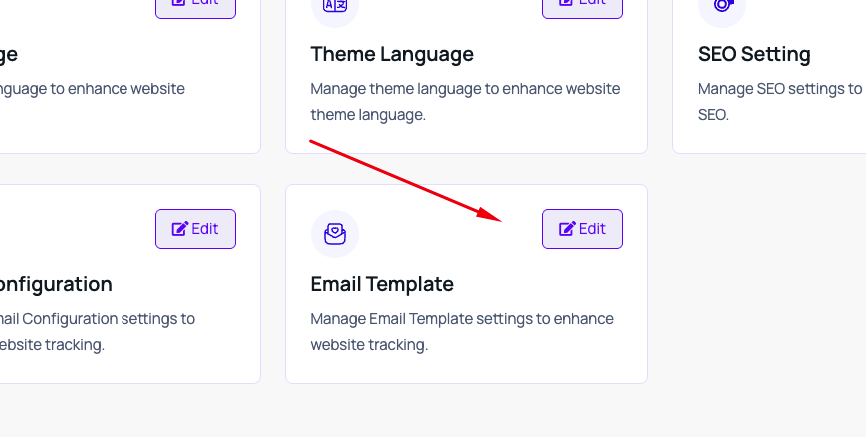
How to set up or change the mail template? We provide a default mail template with our content. If you feel the need to change the content or layout of your email template, you can do it from here.
Note: keep the key elements
Don't try to change the key elements. We have some specific keys in the template body — keep the keys as they are, just change the layout or other necessary content.
News Management
Manage news categories, publishing, and all available news features.
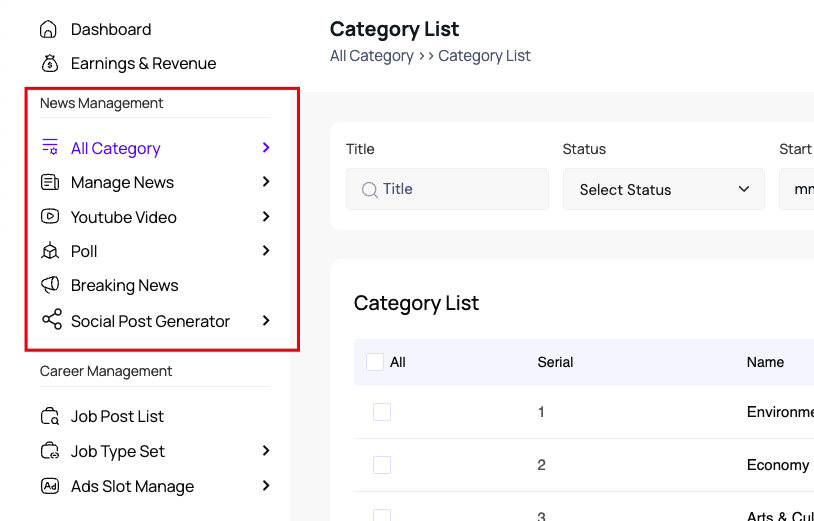
In this section you can manage the news category, sub category, news publish/unpublish and all available features.
News Category
How to create a news category? In the link below you can create a category.
Sub Category
How to create a sub category?
Child Category
How to create a child category?
Homepage Management
This is an important part for homepage management. As you can see, we have multiple news sections on the home page — we handle 12 sections. From this section you can decide which section loads which category's news.
Create News
How to create news? From this link.
Manage News
How to manage news?
Trending, Featured, Paid or Free?
How to decide whether the news will be trending, featured, paid or free? On the news create or edit page you can see multiple toggle options. You can toggle the feature if you need it.
Schedule Post
How to make a scheduled post? Schedule post is an interesting part. If you create news today but want to publish it after 10 days or at some specific time, just create it and set the time. You'll find the option on the create or edit page. It's called the "Schedule Post" toggler — when you toggle it, a time field appears. Set your time and the system automatically posts it.
Breaking News
How to create breaking news? From this link you can set breaking news which appears on top of the website header. You can set scheduled breaking news too. You can make multiple breaking news at a time, and you can set the time frame for the breaking news — within this time the breaking news will appear.
Instagram Reels Video
How to generate an Instagram Reels video? You can use the "generate reel video" option on the sidebar — you'll find the option at this link. Choose your news from the dropdown, upload the reels video, and the system renders the video with the news title and watermark logo, then returns the preview and download link.
YouTube Video News
How to upload YouTube video news? From this link you can see the available YouTube news list which you created before.
Note
Remember this is not direct fetching from YouTube. You have to add the link manually here.
Poll Management
Create polls for your users and review the voting statistics.
Poll is a good feature on this platform. If you want to make a poll for your users you can simply manage it from here. You can decide whether the poll is publicly available or only authorized users can vote. You can see the reports and vote statistics from the view icon individually.
Career Management
Post jobs, collect applications, and hire manually.
If you need to hire someone for your office or business, you can simply add a new career post. The post will appear on the frontend and users submit their application. You can review it and hire manually.
Handling applications
You can handle the application requests from the individual "view applications" button.
Advertisement Management
Offer ad slots to your visitors and manage bookings.
This is an interesting part of this platform. You can make an offer to your visitors to boost their business with ads. You can handle the available ad slots from the dashboard.
How to set up the ads slot feature?
The link below shows the available slots. Click the edit icon to set up or change the ads slot price per day. We currently count the price on a daily basis.
How can I see the ads booking requests?
From this page.
How can I disable or block upcoming or running ads?
From the request page you can see the whole list; click the view icon to see the individual ad information. On the detail page you can see an action button to hide the ads.
Subscription Management
Earn money from your readers with paid news and subscription plans.
This is the module used to earn money from users — you can charge your readers. If you want to offer free or paid news, you can do both. You can set an individual newspaper charge. You can set it on this page.
Enable the paid feature first
But make sure you enable the paid feature on the setting page. From this setting you can handle the paid feature centrally with the "Allow Individual News Subscription" toggle — toggle the button to enable the paid feature in the system. This is just a setting, not directly applied; you just enable the setting.
Now when you create or edit news you get another toggle option, "mark as paid". When you toggle it, the newspaper forces the user to pay.
On the website, the user pays separately for each paid news. But a user can purchase a monthly/yearly plan — when he purchases a monthly plan he doesn't need to pay per article; the monthly charge allows this newspaper.
Storage Management
Manage and increase your newspaper's storage with add-on plans.
With the SaaS plan, when you purchase you get some free space with each newspaper. But day by day, when it runs out, you can purchase an additional add-on.
How to increase the storage?
On this page you can see our available storage plans inside your admin dashboard. You can purchase a new plan — when you purchase, your previous plan is overwritten.
Team Management
Add roles and permissions, and assign team members.
Team members are another part of this newspaper panel. You can add roles and permissions and assign them to your team. The roles you can create are dynamic names like writer, journalist, graphic designer, etc.
How to add a new team member?
From this page you can add unlimited team members.
Social Post Generator
Auto-generate branded thumbnails and reels for sharing news on social media.
This is one of the most important parts of this platform. If you want to share news on social media you need an image. Our system automatically generates a thumbnail for your social post — the thumbnail generates an image and title with the brand logo watermark.
How to make a social media thumbnail?
From the link below ("general thumbnail") you can see the generated log and additionally create a new thumbnail. Choose your news from the dropdown, submit the form, and the system returns a new thumbnail.